

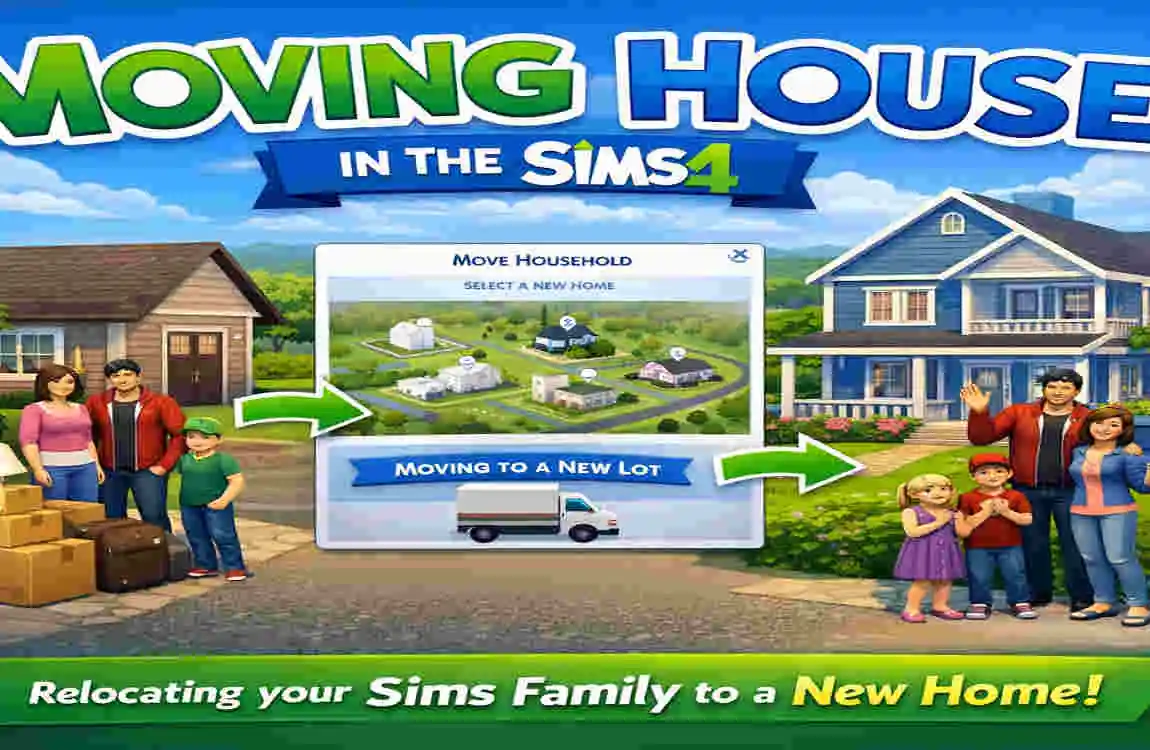
If you are wondering how to move house in Sims 4, the process is actually very simple. You can move a household to a new home, or you can move an entire house to a different lot. Either way, the game makes it easy once you know where to click.
Many players move house for a fresh start, a bigger home, or a better neighbourhood. Some want a change in style. Others want to keep their Sims’ progress but upgrade their living space.
What Does Moving House Mean in Sims 4?
Moving a Household
This means you take your Sims and place them in a new home. Their lives continue, but they now live somewhere else.
Your Sims keep important progress like:
- Careers
- Skills
- Relationships
- Personal inventory
This is the most common kind of move in The Sims 4.
Moving an Entire House
This means saving the actual building and placing it on another lot. You do this in Build Mode.
This is useful if you built a house you love and want to reuse it somewhere else. It is different from moving only the Sims.
Things to Do Before Moving
Save Your Game
Always save before moving. This protects you if something goes wrong.
Check Household Funds
Make sure your Sims have enough money for the new lot or house. If not, you may need to sell furniture or choose a cheaper place.
Decide What to Keep
Before moving, think about what matters most:
- Furniture
- Decor items
- Household inventory
- Valuable objects
If you sell everything, you will have more Simoleons. If you keep furniture, you can decorate your new place faster.
How Do You Move House on Sims 4: Step-by-Step
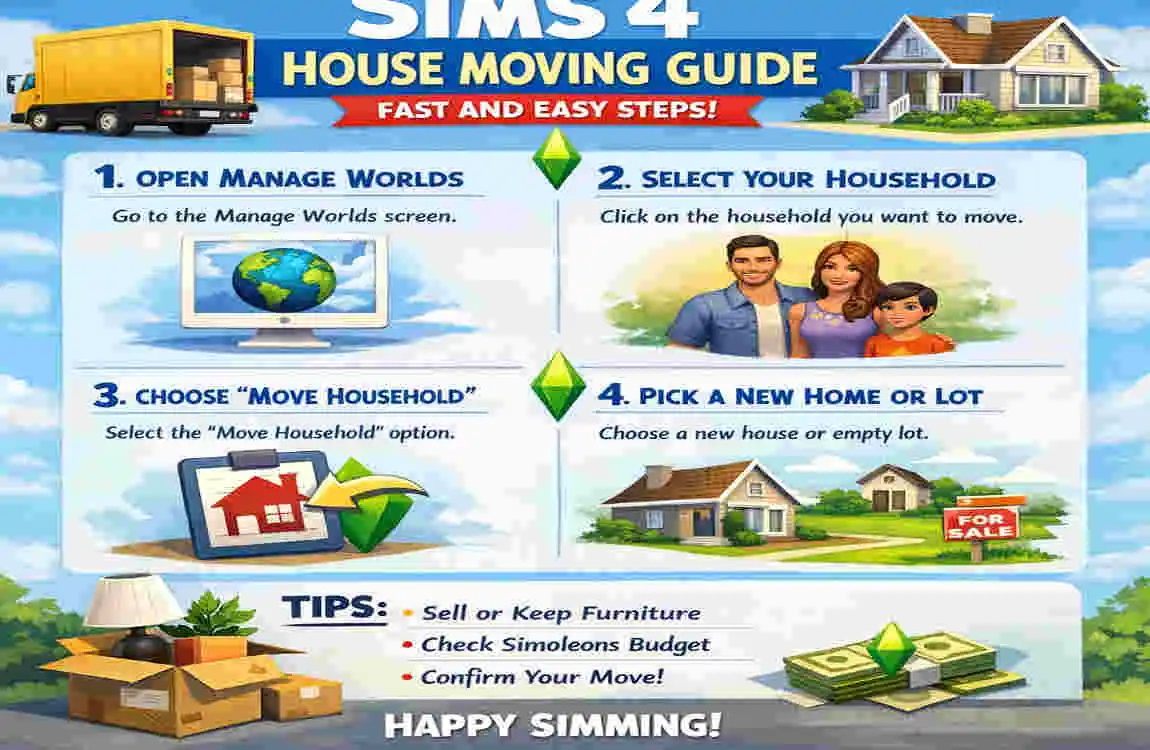
Open Manage Worlds
From the game map, go to Manage Worlds. This is where you can move households between lots.
Select Your Household
Choose the family or Sim household you want to move. You will see their current home and available options.
Choose Move Household
Click Move Household. This starts the relocation process.
Pick a New Lot
Select the new home you want. You can move into an empty lot or an already built house, depending on your budget.
Decide Whether to Sell or Keep Furniture
The game will usually ask what you want to do with your furniture. You can keep it or sell it.
Confirm the Move
Once you confirm, your Sims will move into the new home. That’s it.
How to Move a House to Another Lot
Save the House to Your Library
If you want to move a building, enter Build Mode and save the house to your Library first.
Place the House on a New Lot
Go to the new lot and place the saved house from your Library. Make sure the lot is large enough.
Fix Lot Placement if Needed
Sometimes the house may not fit perfectly. If that happens, you may need to rotate it, resize the lot choice, or adjust the placement.
What Happens After Moving?

Household Inventory
Items you kept usually go into your household inventory. You can use them later in the new home.
Bills and Utilities
Your new home may come with different bills depending on its size and value.
Careers and School
Your Sims usually keep their jobs and school progress after moving.
Friends and Relationships
Relationships stay the same, so your Sims do not lose their friendships or family ties.
Common Moving Problems and Solutions
ProblemSimple Fix
Can’t afford a house Sell furniture or choose a cheaper lot
House won’t fit Pick a larger lot
Furniture missing Check household inventory
Household split by mistake Reopen Manage Worlds and regroup Sims
If you run into trouble, do not worry. Most problems are easy to fix.
Tips for a Smooth Move
- Save before you move
- Check lot size first
- Keep valuable furniture
- Use the Gallery or Library as backup
- Make sure you have enough Simoleons
These small steps can save you a lot of time later.
Frequently Asked Questions
How do you move house on Sims 4 without losing furniture?
Choose the option to keep your furniture when the game asks during the move.
Can you move to another world in Sims 4?
Yes. You can move your Sims to another available world if they can afford the lot.
Do Sims keep their jobs after moving?
Yes. Careers usually stay the same after a move.
Can you move a house instead of rebuilding it?
Yes. Save the house to your Library and place it on another lot.
Does moving delete relationships?
No. Your Sims keep their relationships and friendships.
Can you move for free in Sims 4?
You may be able to move for free if you choose a lot that fits your budget or sell furniture to cover the cost.
What happens to household inventory after moving?
Items you keep usually stay in the household inventory and can be used later.
| Step | What to Do | Quick Tip |
|---|---|---|
| Save Your Game | Save your progress before moving your household. | Prevents losing any data. |
| Open Manage Worlds | Click the Manage Worlds button from the game menu. | You can move from any saved game. |
| Select Your Household | Choose the family you want to move. | Make sure you’ve selected the correct household. |
| Click Move Household | Select the Move Household option. | This opens the world map. |
| Choose a New House | Pick an empty lot or an existing home. | Check the lot price before confirming. |
| Handle Household Funds | Decide whether to sell furniture or keep it in storage. | Keeping furniture lets you reuse it later. |
| Confirm the Move | Click the confirmation button to complete the move. | Your Sims will relocate instantly. |
| Arrange the New Home | Place stored furniture and decorate rooms. | Customize the house to fit your Sims’ lifestyle. |
